Account & team
How do I manage email notifications?
You can choose which order, shipping and billing emails Airventory sends you. Turn on the main email switch, select the updates that matter to you and save your preferences.
Where are email preferences?
Open Settings → My Accounts.
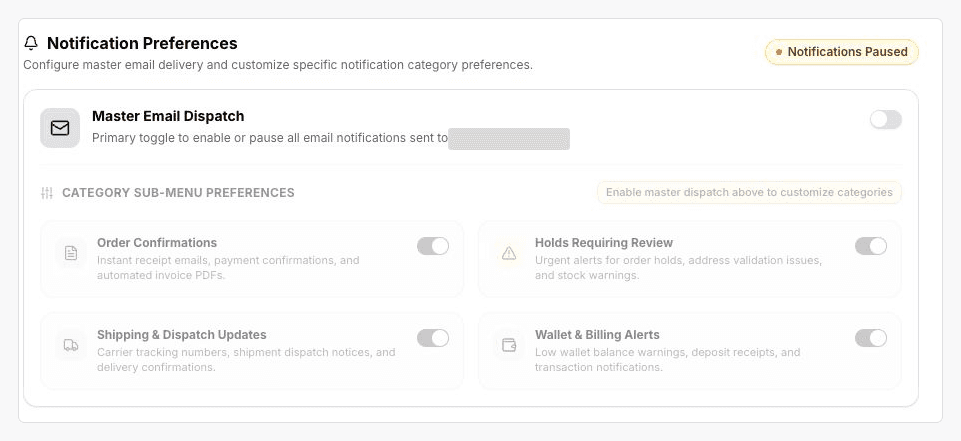
Find Notification Preferences and enable Master Email Dispatch.
Select the email categories you want.
Click Save Changes.
What does Master Email Dispatch do?
Master Email Dispatch is the main switch for your account notifications. When it is on, Airventory can send the email categories you have selected. When it is off, the dashboard shows Notifications Paused and the category controls are disabled. You can turn it back on and save the change in My Accounts.
Which emails can I choose?
Category | Updates included |
|---|---|
Order Confirmations | Receipts and payment confirmations |
Holds Requiring Review | Holds, address issues and stock warnings |
Shipping & Dispatch Updates | Dispatch, tracking and delivery |
Wallet & Billing Alerts | Balances, deposits and transactions |
Select the categories in My Accounts, then click Save Changes.
Why am I not receiving emails?
Check that Master Email Dispatch is on, the relevant category is selected and you have clicked Save Changes. Confirm the account email shown beside the switch and check its Spam folder as well. If those settings are correct and updates are still missing, use Contact support in the Help Center menu. For invoice requests, see our How do taxes, invoices and currencies work?.